
Setup
- Install a TOTP app on your phone: Google Authenticator, Microsoft Authenticator, Aegis, 1Password, Bitwarden and the like.
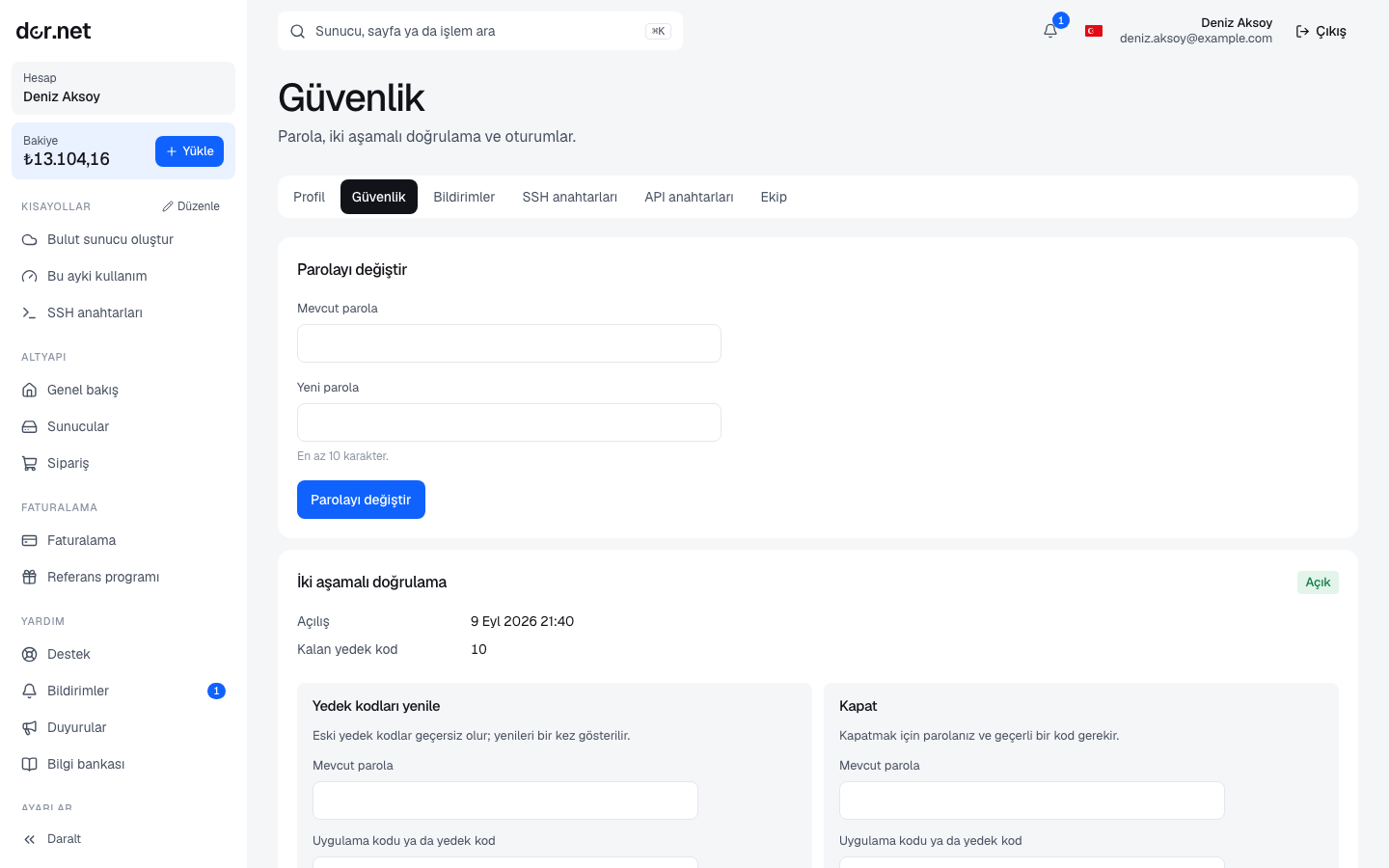
- On Account → Security press Start setup. A QR code and the same secret as text appear.
- Scan the QR code in the app (or enter the secret by hand). The app starts producing a 6-digit code that changes every 30 seconds.
- Enter the current code and confirm. You have 15 minutes after the QR code is shown; if it expires, start the setup again.
- On confirmation 10 backup codes are shown (in the form
xxxxx-xxxxx). Save them in your password manager or another safe place; they are not shown again.
Signing in
After your email and password the code page opens. Enter the 6-digit code from the app. Each code works once; the same code cannot be reused. If your phone is not at hand, enter one of the backup codes; every backup code is single-use and the remaining count is shown on the Security page.
After repeated wrong codes the account accepts at most 10 attempts in 15 minutes; then you need to wait a little.
Regenerating backup codes
Regenerate backup codes on the Security page asks for your password and a current code (TOTP or backup). All old codes become invalid and 10 new ones are shown.
Disabling
Disable also requires the password and a current code. Disabling deletes the secret and the backup codes; to enable again you go through the setup from scratch.
I lost my phone and my backup codes
If you cannot sign in:
- Write to hello@dor.net from an email address you can access, or ask an admin of your team to open a support ticket on your behalf.
- Our team verifies your identity (through the identity details on the account and the registered contact channels).
- After verification a staff member resets two-factor authentication; you sign in with your password and set it up again. The reset is written to the audit log.
When moving to a new phone, migrate the secret from the old app, or disable 2FA before the move and enable it again on the new phone.
FAQ
- The code is always wrong: the phone's clock must be set automatically; TOTP depends on the time. A drift of ±30 seconds is tolerated.
- Is it mandatory for team members? Optional for customer accounts, strongly recommended for admins. It is mandatory for dor.net staff accounts.
- Can I get the code by SMS? No; only an app (TOTP) and backup codes are supported.