
1. Create an account
Sign up at the register page with an email and a password (at least 10 characters); you are asked to accept the service agreement. An organization is created with your account: servers, balance, invoices and team members belong to it. You can be invited to other organizations later; see Team and roles.

2. Get to know the console
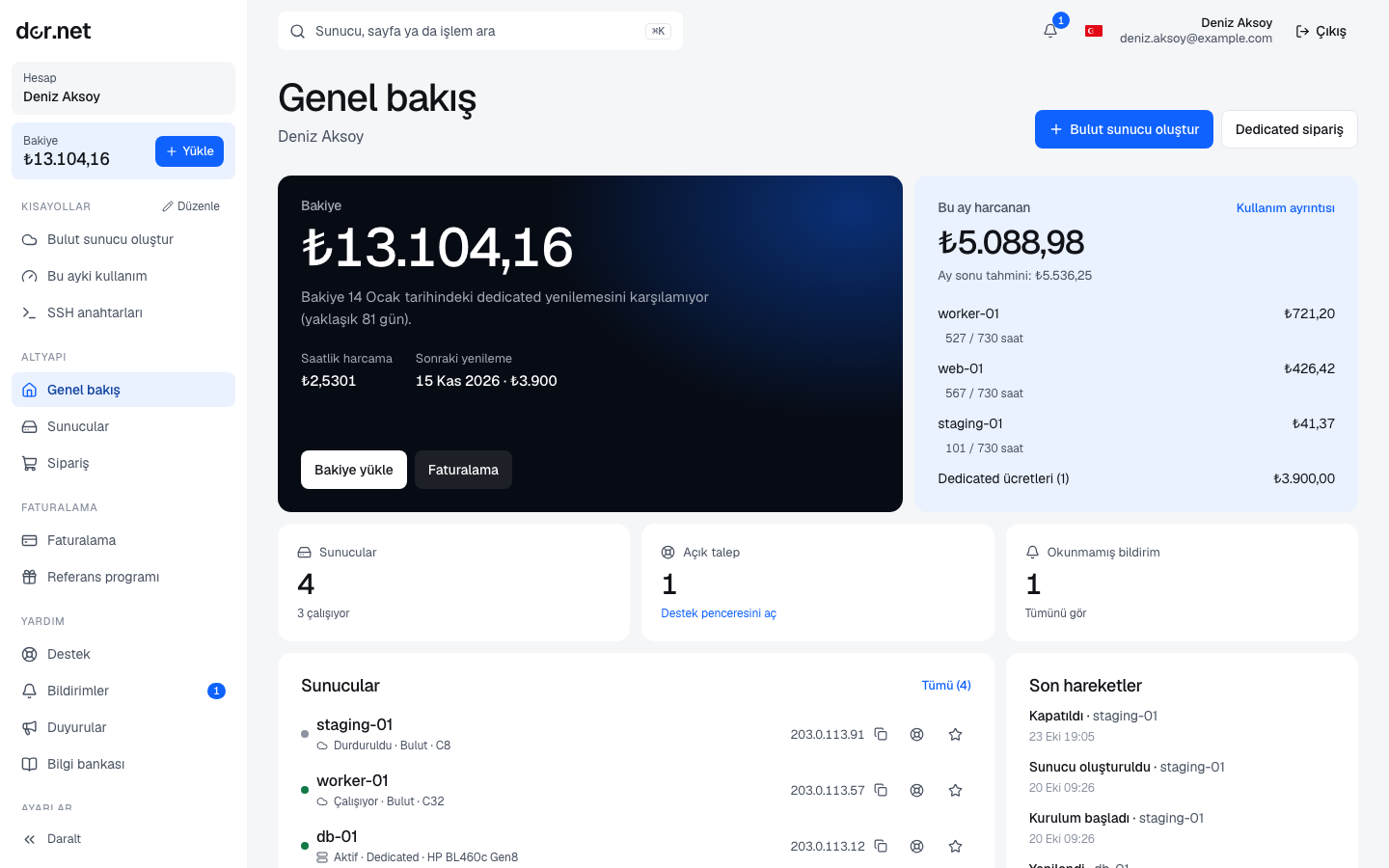
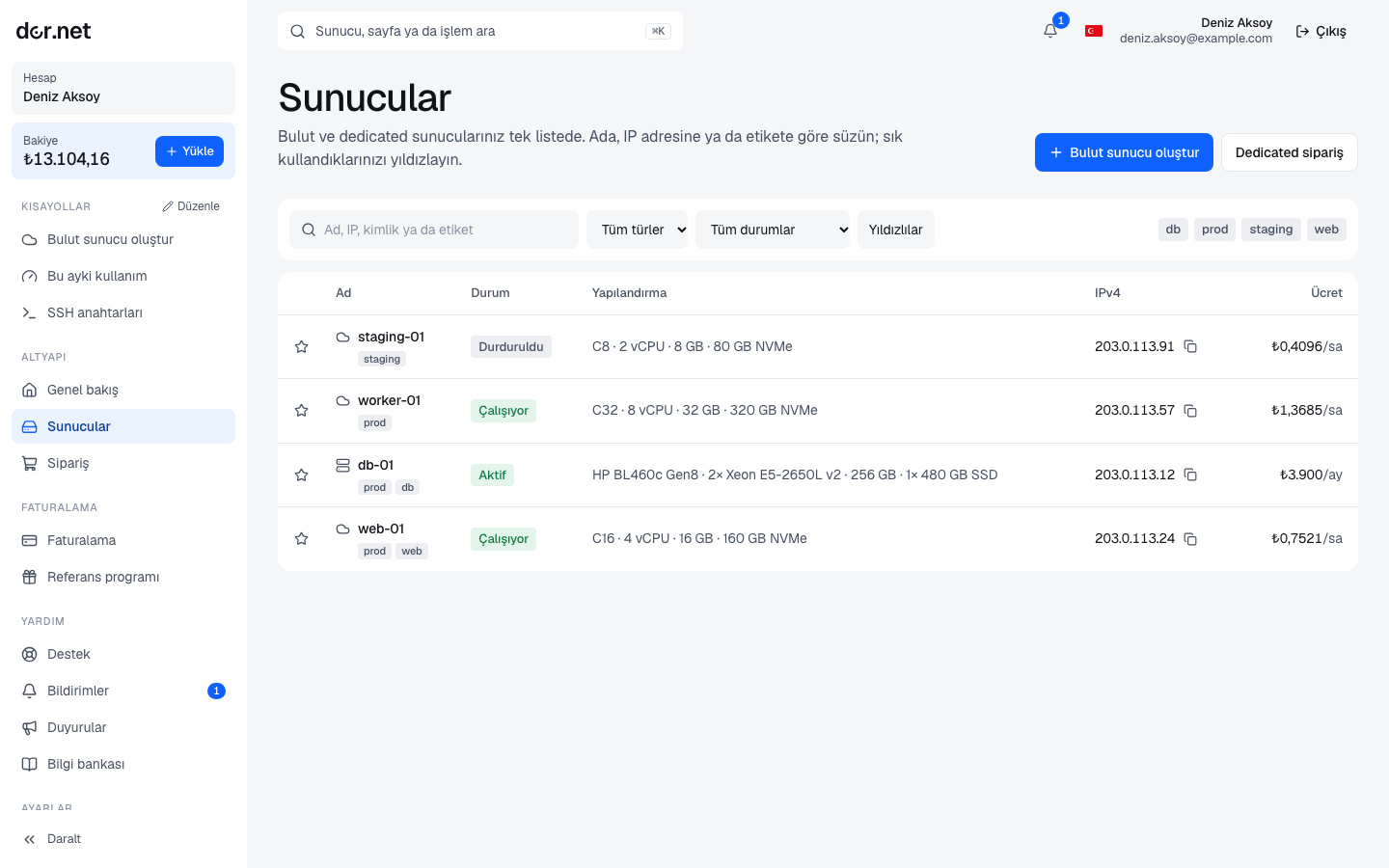
Everything happens in the console. The sections in the left menu:
| Section | What it is for |
|---|---|
| Overview | balance, active services, open tickets, recent invoices and notifications |
| Servers | your dedicated and cloud servers; power, reinstall, console, cancellation |
| Order | dedicated servers from stock or hourly cloud servers |
| Billing | top-ups, pending payments, receipts and invoices, account activity |
| Support | tickets; our target is a reply within one business day |
| Notifications | payment, service, verification and ticket notifications (also sent by email) |
| Account | profile, security (password, 2FA), SSH keys, API keys, team |
| Verification | email, phone, identity and company steps |
3. Verify your account
After sign-up you are asked to verify your email, (in Türkiye) your phone and your identity; company accounts add tax details. Verification does not block orders: your server is installed. However the installation password and remote console stay locked until verification is complete, and an unverified account can create at most 3 cloud servers. Details: Account verification.
4. Top up your balance
dor.net is prepaid. On the Billing page you top up by card or bank transfer; the currency of the first top-up (Turkish lira, euro or US dollar) becomes the account's permanent currency. A dedicated order needs the first month's fee; a cloud order needs at least one month's fee in balance. Details: Balance and billing.
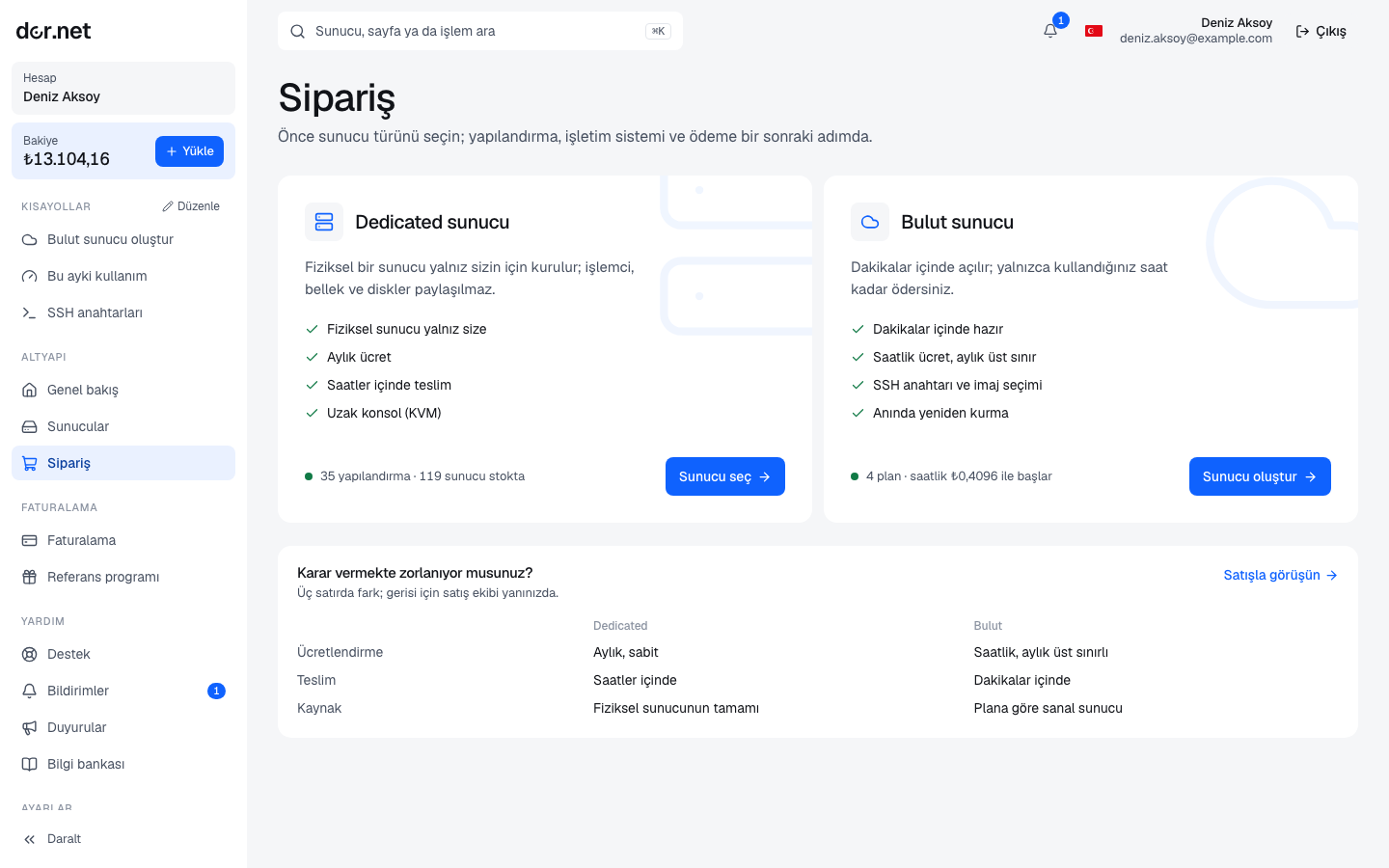
5. Dedicated or cloud?
| Dedicated server | Cloud server | |
|---|---|---|
| Hardware | a physical server reserved for you | a virtual machine on a shared node |
| Price | monthly, from your balance; renews every 30 days | hourly; capped at 730 hours per calendar month |
| Ready in | installed from stock, within hours | minutes |
| Access | installation password, then SSH key | SSH key only |
| Good for | databases, virtualization (Proxmox VE), heavy traffic, licensed software | development, testing, small services, temporary load |
6a. Ordering a dedicated server
- Browse the configurations in stock on the Dedicated page; filter by CPU family, minimum memory and disk type.
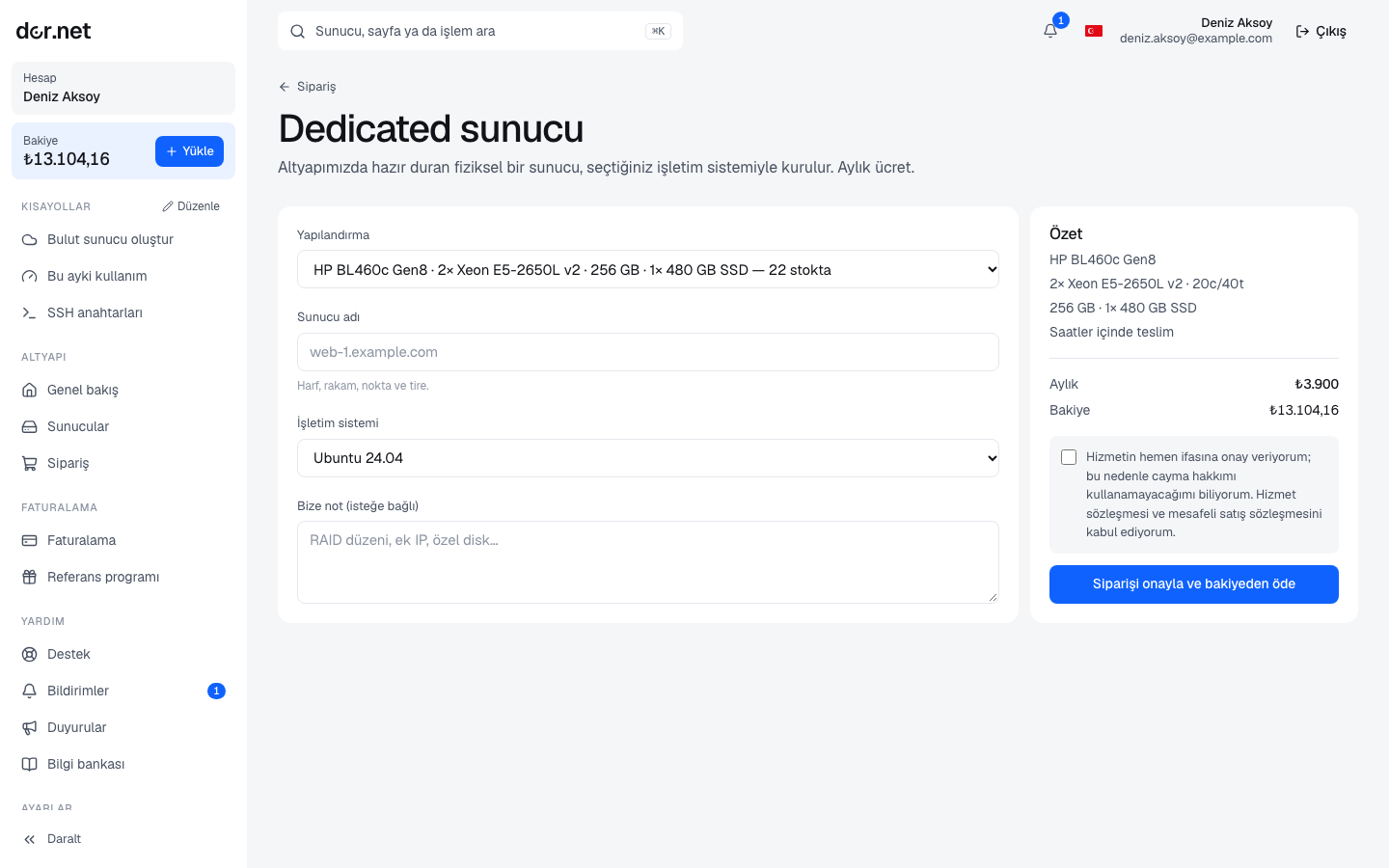
- "Order" takes you to the order page in the console. Pick the configuration, a hostname (letters, digits, dots and dashes) and the operating system; add notes such as RAID layout or extra IPs if you need them.
- For configurations with a listed price the first month is charged to your balance and installation is queued immediately. For configurations marked "on request" the server is reserved for you and a ticket is opened with our sales team automatically; once the quote is entered you accept it on the server page with Pay and start installation.
- When installation finishes the server becomes Active and you receive a notification and an email. The IP address and installation password are on the server page. Details: Dedicated orders and delivery.
6b. Ordering a cloud server
- Add your SSH key before ordering; cloud servers are accessed with keys only, and all keys in the account are written to the new server.
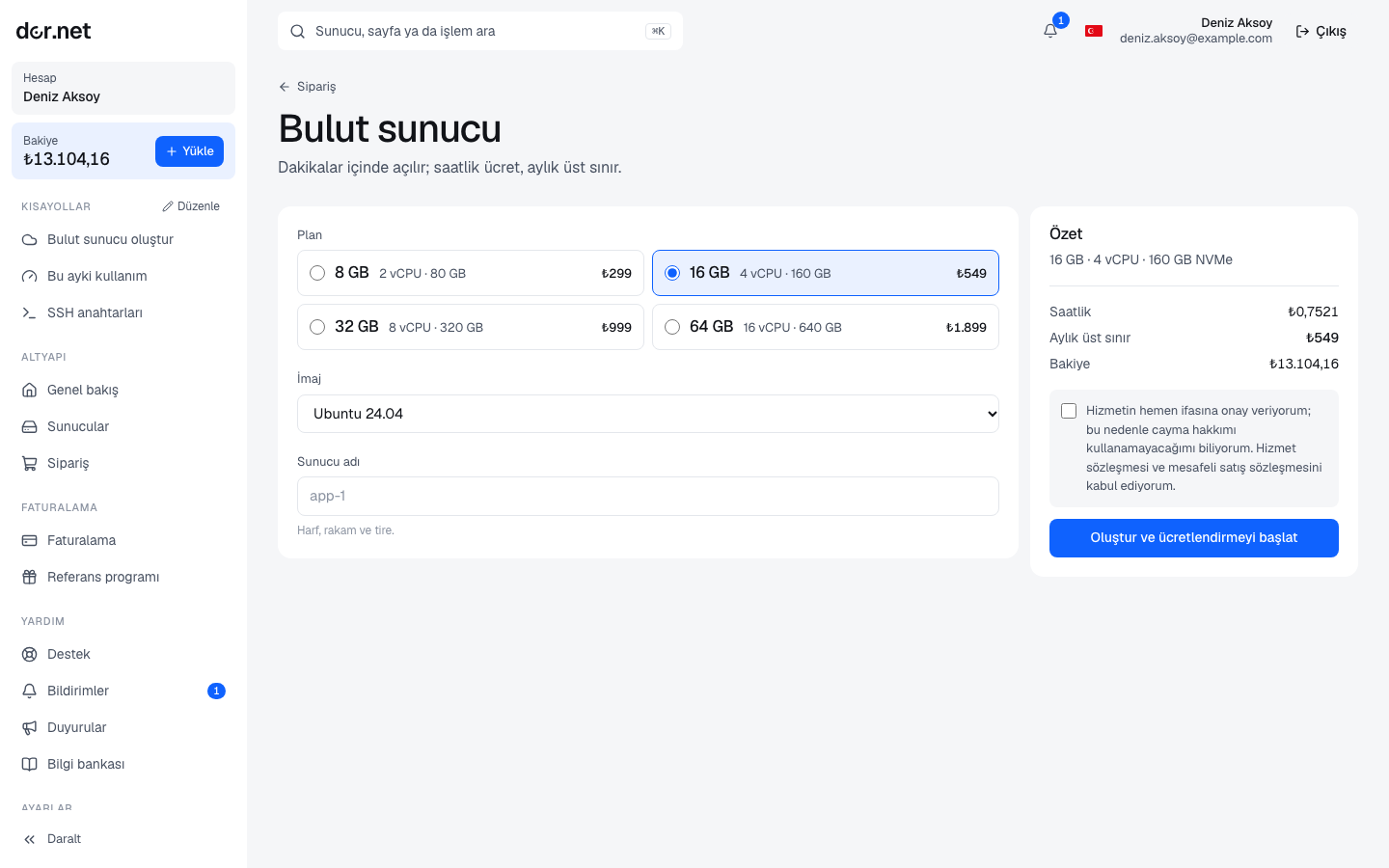
- Under Order → Cloud choose a plan (memory, vCPU, NVMe disk), an image and a name. The summary on the right shows the hourly price and the monthly cap.
- The server reaches Running within minutes; its IPv4 and IPv6 addresses appear on the server page.
Cloud servers are billed hourly; a stopped server is still billed because its disk and IP stay reserved. Delete the server to stop charges. Details: Cloud hourly billing.
7. First access
ssh root@<ip-address>On a dedicated server the first login uses the installation password; we recommend adding an SSH key and disabling password login right after. Key generation, first updates, firewall and the first Proxmox VE login: Connecting with SSH and first steps.
Next steps
- If you will send mail, request an rDNS record for the IP.
- To change the operating system, see Reinstalling.
- Create an API key for automation.
- Protect your account with two-factor authentication.
- Whenever you get stuck, open a support ticket from the console.