
Generating a key
If you do not have a key on your computer yet (same command on macOS, Linux and Windows PowerShell):
ssh-keygen -t ed25519 -C "name@example.com"This creates two files: ~/.ssh/id_ed25519 (private key, never share it) and ~/.ssh/id_ed25519.pub (public key, the one that goes to the server). To print the public key:
cat ~/.ssh/id_ed25519.pub
# ssh-ed25519 AAAAC3... name@example.comAdding the key to the console
- Open Account → SSH keys (owner or admin role required).
- Give it a name and paste the single line from the
.pubfile. Accepted types:ssh-ed25519,ssh-rsa,ecdsa-sha2-nistp256/384/521. - Save. The list shows the key's SHA256 fingerprint; compare it with
ssh-keygen -lf ~/.ssh/id_ed25519.pub.
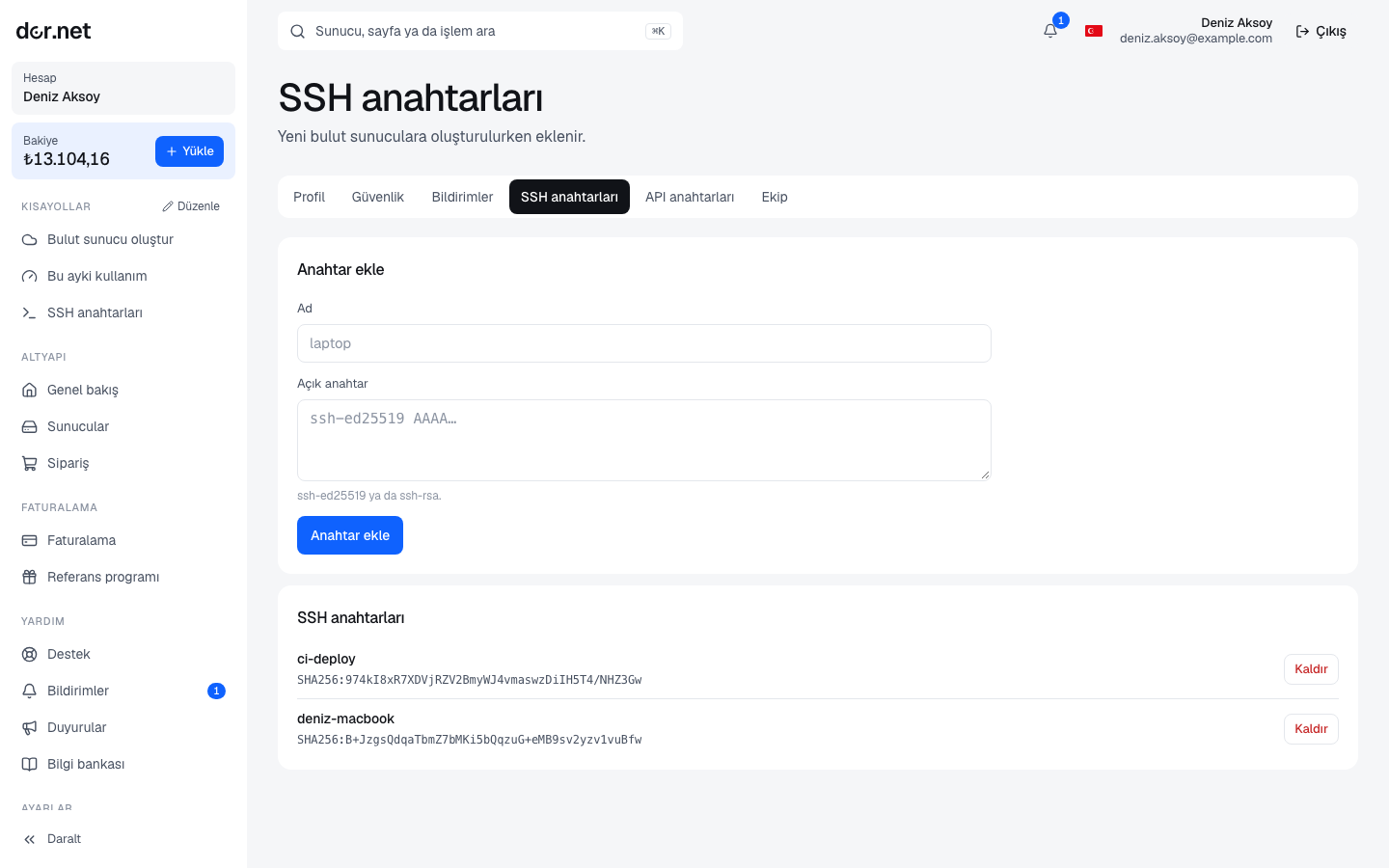
You can add several keys; all keys in the account are written to cloud servers created from then on. Deleting a key does not remove it from existing servers; edit ~/.ssh/authorized_keys there yourself.
First connection to a cloud server
ssh root@<ipv4>
# or over IPv6:
ssh root@<ipv6>Use the IPv4 or IPv6 address shown on the server page. If your key is not in the default location, add -i ~/.ssh/yourkey.
First connection to a dedicated server
Once installation finishes, the Installation password field on the server page reveals the password; the field stays locked until account verification is complete, and every reveal is written to the audit log. Log in with the password and add your key right away:
ssh-copy-id -i ~/.ssh/id_ed25519.pub root@<ipv4>Without ssh-copy-id, append the public key on the server yourself:
mkdir -p ~/.ssh && chmod 700 ~/.ssh
echo "ssh-ed25519 AAAA... name@example.com" >> ~/.ssh/authorized_keys
chmod 600 ~/.ssh/authorized_keysDisabling password login
After confirming in a new window that key login works, set in /etc/ssh/sshd_config:
PasswordAuthentication no
PermitRootLogin prohibit-passwordThen run systemctl restart ssh (Debian/Ubuntu) or systemctl restart sshd (Proxmox VE, RHEL derivatives). Keep your current session open while testing; if anything fails you can revert from the old session.
Copying files
# From your computer to the server
scp ./backup.tar.gz root@<ip>:/root/
# From the server to your computer
scp root@<ip>:/var/log/syslog ./
# Directory sync (if rsync is installed)
rsync -avz --progress ./site/ root@<ip>:/var/www/site/First updates
Debian / Ubuntu:
apt update && apt full-upgrade -y
apt install -y unattended-upgrades
rebootRHEL derivatives (if you installed from your own ISO):
dnf upgrade -y
dnf install -y dnf-automatic
systemctl enable --now dnf-automatic.timerFirewall (ufw)
Open only the ports you need, and do not enable the firewall before allowing port 22, or you will lock yourself out.
apt install -y ufw
ufw default deny incoming
ufw default allow outgoing
ufw allow 22/tcp
ufw allow 80/tcp
ufw allow 443/tcp
ufw enable
ufw status verboseOn Proxmox VE use Datacenter → Firewall instead of ufw; ports 8006 (web UI) and 22 must stay open.
fail2ban in short
Even with password login disabled, it cuts down the noise from brute-force attempts:
apt install -y fail2ban
cat >/etc/fail2ban/jail.local <<'EOF'
[sshd]
enabled = true
maxretry = 5
findtime = 10m
bantime = 1h
EOF
systemctl enable --now fail2ban
fail2ban-client status sshdFirst Proxmox VE login
- Open
https://<ip>:8006in your browser; the certificate is self-signed, so accept the warning. - User
root, realm Linux PAM, password: the installation password (or the one you changed it to). - The subscription notice is informational; enable the
pve-no-subscriptionrepository instead of the enterprise one and runapt update && apt full-upgrade. - If your virtual machines need extra IPs, open a support ticket; we set up the routing with you.
Remote console
The Console button on the server page signs you into the management panel with a single click; KVM and serial console live there. The button counts as an access credential: it stays locked until account verification is complete.
Common situations
- "REMOTE HOST IDENTIFICATION HAS CHANGED": the host key changes when a server is reinstalled. Remove the old entry with
ssh-keygen -R <ip>. - "Permission denied (publickey)": keys are installed only on servers created after the key was added to the console. Check the order of events;
ssh -vshows which key is being tried. - Connection timeout: check that the server is "Running" and that your own firewall is not blocking port 22. From the remote console you can inspect
ufw statusandss -tlnp. - Locked out: if you lost your key, a reinstall of a dedicated server produces a new password; on a cloud server create a new one and move the data.